
.png?width=14&height=14&name=Icon%20(1).png)


.png?width=24&name=Group%20(3).png)



%201.svg)



.svg)


.svg)


































How Can We Help Your Business?
Select a service below and our experts will
reach out to you within 24 Hrs.
 No commitment
 30 minutes
 100% free
Introduction:
Have you ever wondered why you keep getting emails from a website you visited several months ago? Or why a business keeps sending you newsletters even though you have never purchased anything from them? Both these questions have the same answer: Online form submission.
Most businesses think they are tracking form submissions correctly but in reality, they are leaving too much on the table. This is costing them- lost attribution, misaligned lead scoring, and wasted ad spend.If your current setup only tracks “form submitted” events in Google Analytics 4, you’re likely measuring activity and not outcomes.
This MarkeStac guide will show you how to properly track HubSpot forms using Google Tag Manager (GTM) but more importantly, we’ll highlight the areas where most setups fall short and how that impacts your growth.
Let’s begin with an understanding of HubSpot forms and Google Tag Manager.
What are HubSpot forms?
HubSpot Forms is an online tool that helps businesses capture leads and collect data from website visitors. These forms help you gather the information and store it in your database, where you can track and analyze these submissions.
HubSpot form tracking provides you with necessary insights about your audience, helping you make strategic decisions in favor of expanding your business & enhancing your marketing efforts.
What is Google Tag Manager?
Google Tag Manager or GTM is a digital tool that allows users to easily manage and implement tags on their website without the involvement of a developer.
You can track unique tags on your website and make data-driven decisions, all without prior coding knowledge.
GTM is mostly used by businesses or websites to track website events such as clicks on CTAs, form submissions, etc. You can streamline your data collection, optimize paid ads, and gain valuable insights into user behavior by using HubSpot form tracking with GTM.
Why HubSpot Form Tracking actually Matters
Tracking forms isn’t just about counting submissions, it’s about understanding which interactions turn into pipeline and revenue. Many businesses rely on incomplete analytics, where marketing reports conversions but sales sees poor-quality leads. This disconnect happens because your tools track different things and attribution isn’t aligned.
This incomplete form tracking leads to:
- Incorrect reporting of inflated conversion.
- Misalignment between your marketing and sales teams.
- Poor decision-making regarding campaign optimization.
In most HubSpot accounts we audit, this gap creates misleading insights and not missing data. This is why understanding what your tracking captures (and what it misses) is critical.
What Most Setups Miss (and Why Your Data Still Lies)
Basic implementations focus on firing a form submission event but stop there. The problem is that modern analytics requires context, not just actions. Without structured data, all submissions look identical, making it impossible to differentiate high-intent leads from low-value conversions.
What a basic setup tracks:
- form_submit event
- Conversion in GA4
This setup tracks submissions but not lead quality, revenue impact, or true attribution. Here’s what the advanced setups track:
- Form ID / name
- Page URL
- Campaign source
- Funnel stage (TOFU/MOFU/BOFU)
Through this setup, your reports not only show activity but also their impact on your business.
Let’s take a look at how you can implement form tracking in GTM.
How to set up HubSpot from tracking in GTM
Prerequisite:
What do you need?
To implement your modifications successfully, ensure you have edit permissions in Google Analytics and publishing privileges in Google Tag Manager. Additionally, make sure that you have HubSpot forms integrated into your website.
Prerequisites:
- Google Analytics (Edit access)
- Google Tag Manager (Publish access)
- HubSpot Forms integrated into the website
Overview of the steps involved
The entire process of setting up HubSpot from tracking in GTM consists of four straightforward steps. Here they are:- Generate a custom HTML tag in GTM
- Incorporate a dataLayer variable to read the GUID of the form
- Create a trigger that reflects the success of the form submission
- Integrate a Google Analytics Event Tag that reports the data to GA
Before you start:
Please make sure Clicks and Forms ‘Variables’ in GMT are on.
If you don’t know how to turn it on, follow these steps:
-
Go to variables in GTM
-
Under ‘Built-in Variables’ > click ‘Configure’.
-
Check all the boxes under ‘clicks’ and ‘forms’
(I.e., click an element, click classes, click ID, form URL, Form text, etc.)
Step-by-Step Process to Integrate HubSpot Form Tracking in GA4
Step 1: Generate a custom HTML tag in Google Tag Manager
The first step in enabling form tracking in GA4 is to create a custom HTML tag in Google Tag Manager. For that, you need to follow the steps mentioned below:
-
Go to the tag section
-
Click New > Tag configuration > select Custom HTML
-
Copy & paste the following code into the HTML section
|
<script type="text/javascript"> window.addEventListener("message", function(event) { if(event.data.type === 'hsFormCallback' && event.data.eventName === 'onFormSubmitted') { window.dataLayer.push({ 'event': 'hubspot-form-success', 'hs-form-guid': event.data.id }); } }); </script> |
-
Next, set the trigger to fire on all the pages
-
Save
Step 2: Add a dataLayer variable to read the HubSpot form’s GUID
This step is also quite easy to perform. Follow these steps:
-
Go to variables
-
Navigate to user-defined variables
-
Click on Add new
-
Select data-layered variable
-
Name it forms-hs-form=guid
-
Variable type: data layers variable
-
Variable name: hs-form-guid
-
Save
Step 3: Create a new trigger
Creating the trigger for tracking forms in GTM takes nothing more than a few actions:
-
Add trigger type: Custom event
-
Add trigger name: Event-HubSpot-form-success
-
Add event name: HubSpot-form-success
-
Select action: Trigger fires on all custom events
Step 4: Create a Google Analytics Event Tag
Perform the following steps:
-
Create a new tag then select ‘Google Analytics: GA4 Event’
-
Name the tag: GA4_Event_Form_HS Success
-
Enter the GA4 measurement ID in the configuration tag field
-
Create a name for the event ie: Form_submit
-
Add event parameters (optional)
-
Navigate to Triggering > Select the trigger we created: Event-hubspot-form-success
-
Save
-
Submit all of your Google Tag Manager Updates (blue button at top right).
Step 5: Setup the new event as a goal in GA4
Once you are done configuring the tag and the trigger to enable form submission tracking in Google Analytics 4, you simply need to set up the conversion. To complete this process, perform the following actions:
-
Go to your GA4 property
-
Click on Under ‘admin’ > Click ‘Conversions’
-
Click ‘New conversion event’
-
Add your ‘Event Name’ (From step 4): Form_submit
-
Save
And that's all! You are done with the set-up. While this setup works if you only need visibility, it falls short when you're optimizing your campaigns or allocating budget.
You can enhance Step 4 by adding event parameters like form ID, page path, and lead source, so you can differentiate high-intent conversions from low-value submissions and make data-backed decisions.
Is This Setup Enough for Your Business?
Not every business needs advanced tracking but many outgrow the basic setups quickly. The difference in this requirement depends on your traffic volume, campaign complexity, and how much you rely on data for decision-making.
DIY setup works if:
- You have few forms
- Low traffic
- No heavy ad spend
You need advanced tracking if:
- You run paid campaigns
- You have multiple conversion paths
- You care about lead quality and attribution
Because at scale, incorrect tracking doesn’t just mislead, it wastes your budget. If you’re unsure whether your setup is actually capturing accurate attribution, this is usually the point where businesses opt for a tracking audit, before scaling their campaigns further.
At MarkeStac, we’ve implemented HubSpot + Google Analytics 4 tracking across multiple industries and high-traffic portals, and this is one of the most common gaps we uncover early.
Common Business Scenarios & How This Setup Helps
Different businesses use forms differently and that changes how tracking should be structured. A one-size-fits-all setup often fails because it doesn’t reflect how leads actually move through your funnel.
Here are a few examples of what you should track in each scenario:
1. SaaS Demo Funnels
- Need to track demo vs. signup vs. content.
- Map conversions to your revenue.
Without this, your demo requests and blog downloads look identical, making it hard to identify high-intent leads.
2. Agency Lead Generation
- Separate TOFU downloads from BOFU enquiries.
- Avoid inflated conversion metrics.
Otherwise, even a simple ebook download can be counted the same as a qualified inbound lead.
3. B2B High-Ticket Forms
- Requires precise attribution.
- Needs CRM-linked insights.
Without accurate tracking, you can’t tell which of the campaigns actually drive high-value deals.
A Simple Funnel that Most Businesses Get Wrong
Form tracking should connect marketing activity to revenue outcomes and not just record submissions. However, most setups stop at the action level and never connect data across systems.
Here’s how form tracking should actually connect across your marketing and sales funnel:
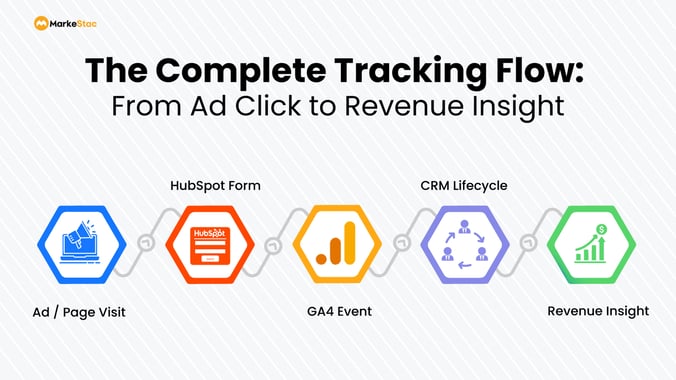
Most businesses only track the form submission step. That’s why although the analytics look complete, decisions still feel uncertain because:
- You don’t know which campaigns drive actual revenue
- Your CRM data isn’t connected to analytics
- Optimization decisions are based on incomplete insights
By tracking the entire marketing & sales flow your tracking shifts from being “functional” to “strategic.”
Advanced Tracking (What Serious Teams Implement)
Once you move beyond basic tracking, the goal shifts from visibility to decision-making accuracy. Advanced setups structure data so it can be used for attribution, optimization, and forecasting and not just reporting.
Advanced capabilities include:
- Mapping forms to lifecycle stages
- Campaign-level attribution fixes
- Multi-step funnel tracking
- Feeding high-quality data into GA4 for better modeling
Better data improves GA4’s predictive insights and ROI analysis. This is where most businesses transition from DIY to expert-led implementations.
Common Issue We See (and Fix Often)
Even when tracking is implemented, data inconsistencies are common. GA4 and HubSpot often report different numbers due to differences in attribution models, session definitions, and tracking behavior.
Common problems:
- Duplicate or missing events
- Attribution mismatches
- Incomplete campaign data
The issue isn’t tracking, it’s how your tracking is structured.
Which brings us to the final decision every team needs to make- basic setup vs. advanced form tracking.
- If you only need visibility → basic setup is enough
- If you need accuracy and attribution → complexity increases quickly requiring advanced form tracking
Because the real question isn’t, “Did a form submit?” It’s, “Did this form drive revenue?”.
Final Thoughts
HubSpot form tracking isn’t just a technical setup, it’s a growth decision. If done right, it could become a revenue driver for your business, by helping you optimize your campaigns, improve your lead quality, and increase your ROI.
However, if it’s set up inefficiently, it creates false confidence. That is why you need digital marketing experts on your side. At MarkeStac, we align GTM form tracking to reflect your reality so you make informed decisions with real-time data insights. Contact us to book a simple audit because better decisions start with better data.









.png?width=80&height=81&name=mail-01%20(1).png)


.svg)





.png?width=410&height=126&name=Group%201000005667%20(1).png)